FEATURE REQUEST: Scribe Filler Tweaks
Feature Request: Scribe Filler Tweaks
Dear MV Team & Community,
Heres my proposed idea tweaks that can be made to the Scribe Filler with Cleats
- Filler Part Name --> Show on part reports whether the filler is a LH or a RH filler
- e.g. you have a 2 Door Base Cab with a filler on the left & filler on the right. now on the part list report it will show:
- Filler Front L
- Bottom Return L
- Filler Front R
- Bottom Return R
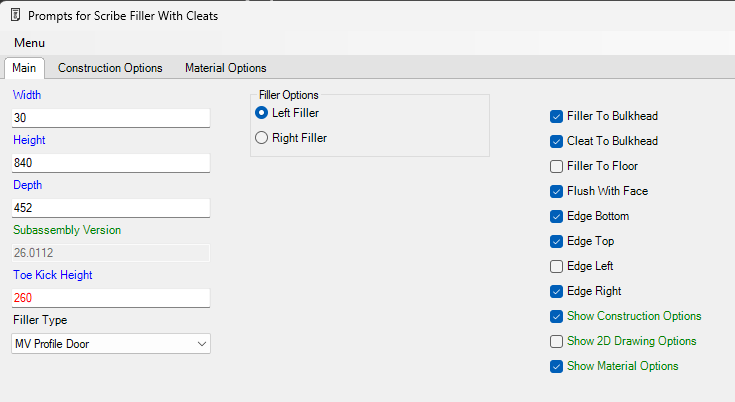
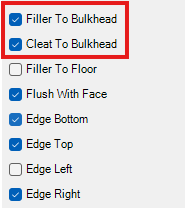
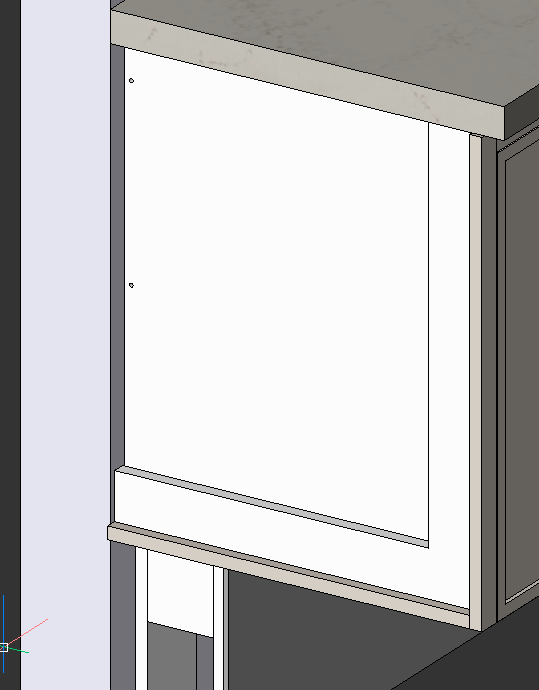
- Filler To Bulkhead & Cleat To Bulkhead Checkboxes
- e.g you have a Base 3 Drawer cab with a Open Hanging Cabinet on top.
- Subassembly Prompts --> Scribe Filler with Cleats --> Filler To Bulkhead --> Done
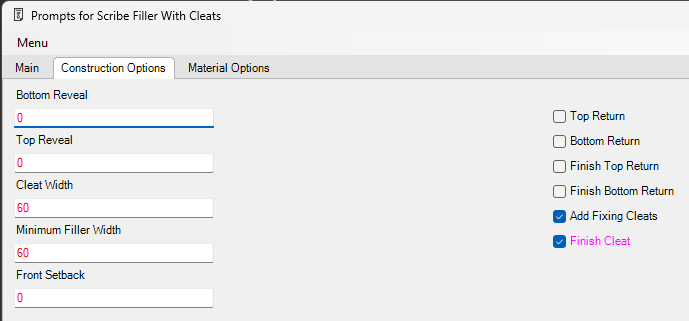
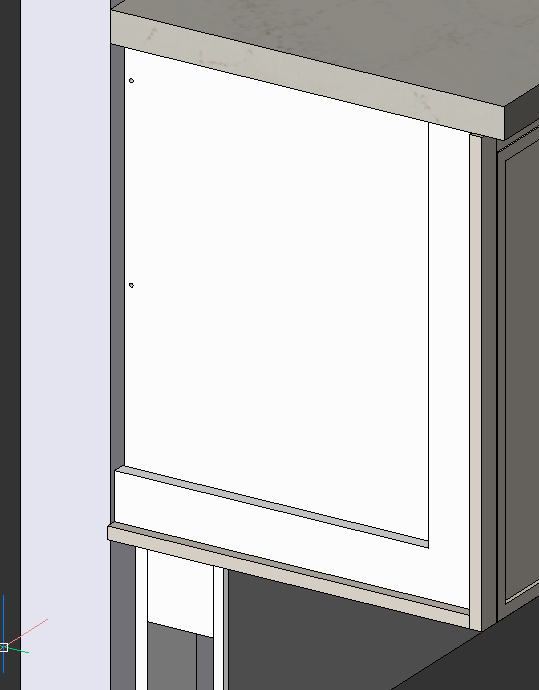
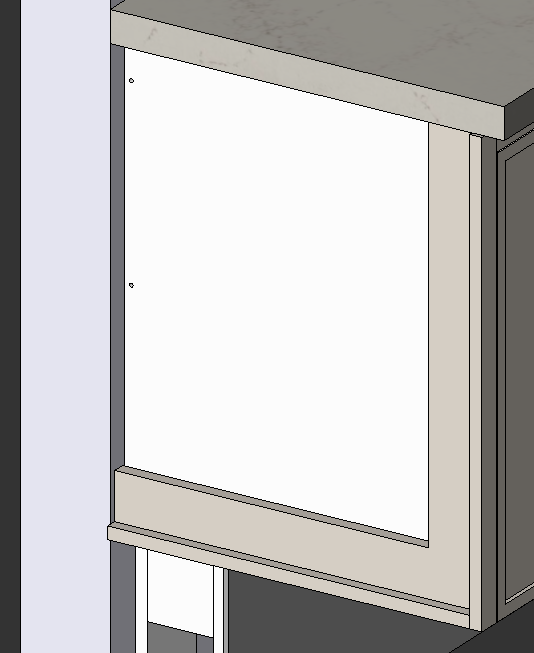
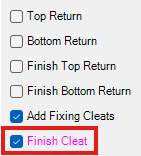
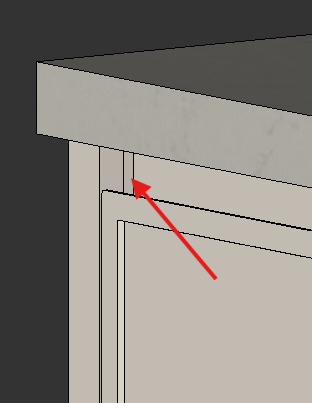
- Finish Cleat Checkbox
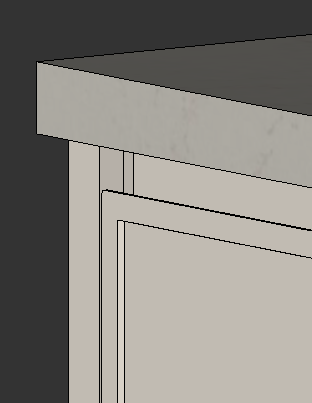
- e.g. your filler material is a woodgrain material and is 16mm thick, your door material is woodgrain & 21mm thick and you have shadow line turned on, you will see the white cleat material.
- Subassembly Prompts --> Scribe Filler with Cleats --> Construction Options Tab --> Finish Cleat --> Done
- Cleat Width --> Now points to Global Variable G!Cleat_Width
- Cleat Design Updated --> Single Dynamic Cleat (I, L, C Shape)
- e.g. you want a more simplified cleat that doesnt require you to join the top cleat and bottom cleat onto the front cleat. Instead you want a single cleat that adapts to the top & bottom return that uses a "L" or "C" shape cutout.
- Flush with Face --> Now checks if the cabinet is an Open Cab
- e.g. You have G!Fillers_Flush_With_Faces set to True, you just drew an Open Base Cab and find that the the filler is now sitting forward by Thickness_Door+Door_To_Cabinet_Gap
- Floor Scribe --> When Filler To Floor is checked add extra scribe for planing to the floor
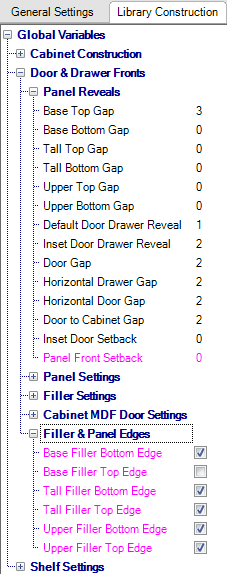
- Filler Setback --> Control Setback from Front from global G!Panel_Front_Setback
- e.g. you have a Profile door with a thumb mould edge and you want all panels and fillers to be set back to line up with the thumb mould edge.
- **Can also have a negative value entered to extend outwards
- Global Variables --> Library Construction Tab --> Doors & Drawer Fronts --> Panel Reveals --> Panel Front Setback --> Enter value.
- Control the Top and Bottom Edges of Base Fillers, Tall Fillers, Upper Fillers from the Globals
- e.g. you always want you Upper Cabinet Fillers to be edged on the top & bottom, but you only want your Base Cabinet Fillers to be edged on the bottom.
- Global Variables --> Library Construction Tab --> Doors & Drawer Fronts --> Filler & Panel Edges -->
- Base Filler Bottom Edge --> Checked
- Base Filler Top Edge --> Unchecked
- Upper Filler Bottom Edge --> Checked
- Upper Filler Top Edge --> Checked
The list of changes is attached at the bottom of this page: Subassembly - Scribe Filler with Cleats.pdf
Images: